
Sensors measure movement on a line, and movement is not always production. Sometimes the record they produce does not match what actually happened, because a line could be down for a break, for scheduled maintenance, for a changeover, or any number of other reasons.
An Override lets a supervisor set the status for a period of time they choose, in place of what the sensors recorded during it.
Words to Know
| Term | What it means |
|---|---|
| Stop | A period the sensors recorded as the line not running. |
| Reason | The explanation for a stop, chosen from a set list. |
| Annotate | To add a reason to a single stop the sensors found. |
| Override | A correction made by a supervisor across a chosen period of time. |
| Period | A block of time with a start and an end that the supervisor sets. |
How an Override Differs from Annotating
Operators annotate. The sensors find a stop, the times are fixed, and the operator supplies the reason. That covers most of the day, and it is described in Basics of Running a Production Log Session.
An Override works from the other direction.
| Annotate | Override | |
|---|---|---|
| Starts from | A stop the sensors found | A period you select |
| Who sets the times | The sensors | You |
| What it can cover | One stop | Any period, including time recorded as running |
| Who uses it | The operator on the line | A supervisor |
An annotation can only explain a stop that was detected. An Override can correct a period the sensors got wrong in either direction, including time they recorded as running when the line was not producing.
When to Use One
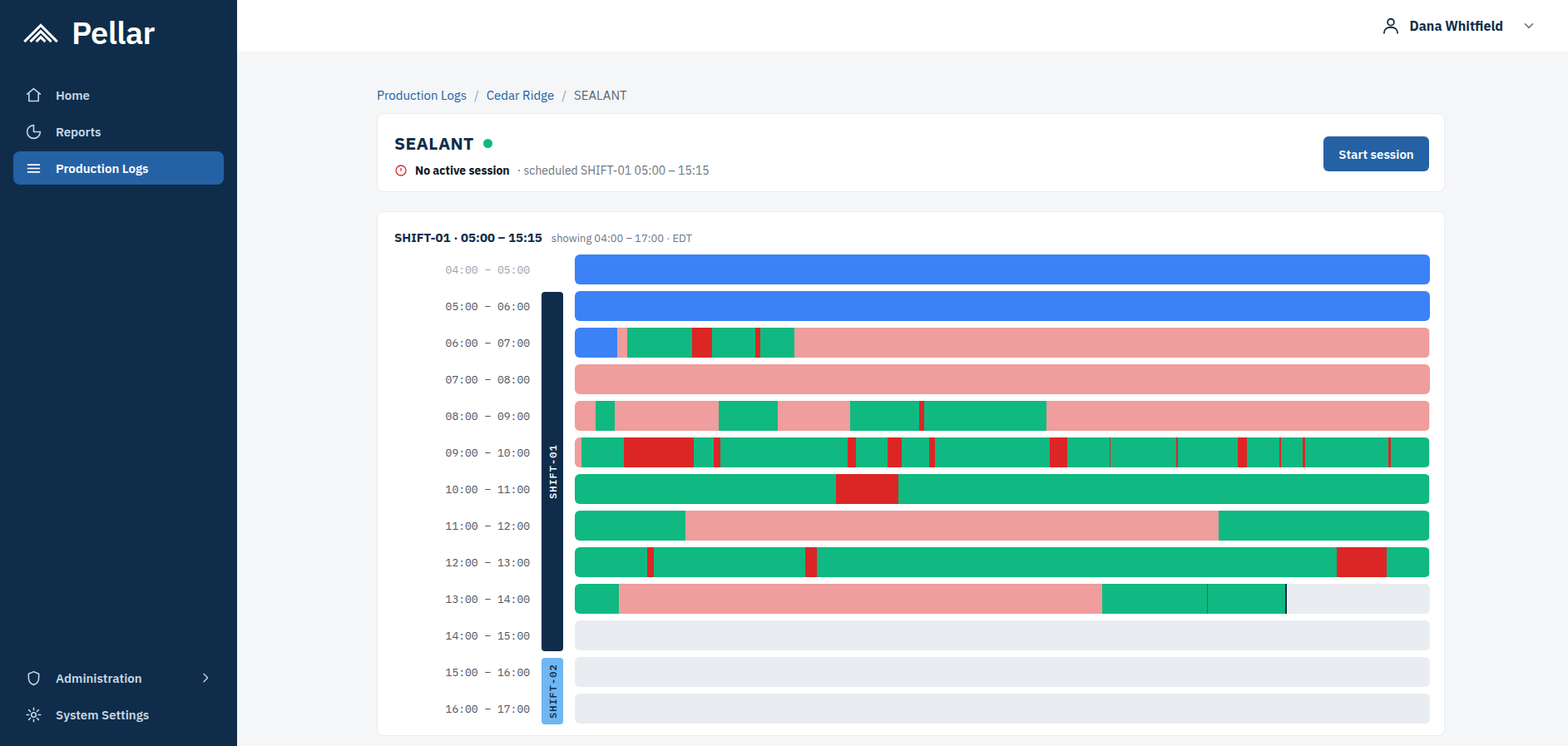
People working in or around the machine. If someone is inside the equipment or passing in front of a sensor, that movement can register as the line starting and stopping repeatedly. The timeline fills with short alternating blocks that do not describe anything real. Annotating each one separately would take a long time and would still leave a misleading record.
A status that carried for a long time. If a line is left in a particular state at the end of a week, it can hold that state until someone returns to it, in some cases across a whole weekend. That is one situation rather than hundreds of separate stops, and it is corrected as one.
A known window of planned work. Maintenance scheduled from 9 AM to 11 AM can be set directly as planned downtime, instead of being assembled out of whatever the sensors recorded while the work was going on.
Applying an Override
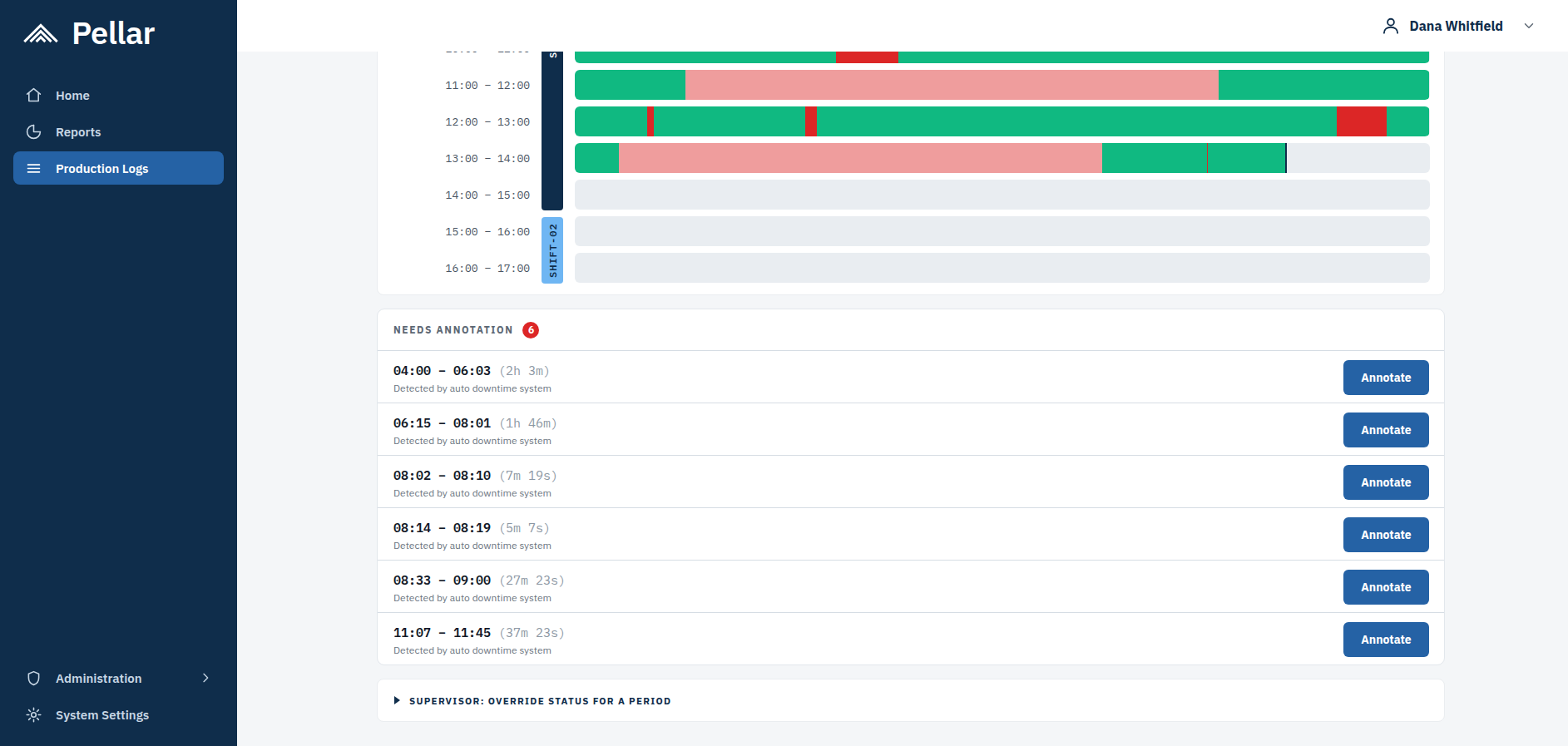
Open the line and go to the bottom of the page. Expand Supervisor: override status for a period.
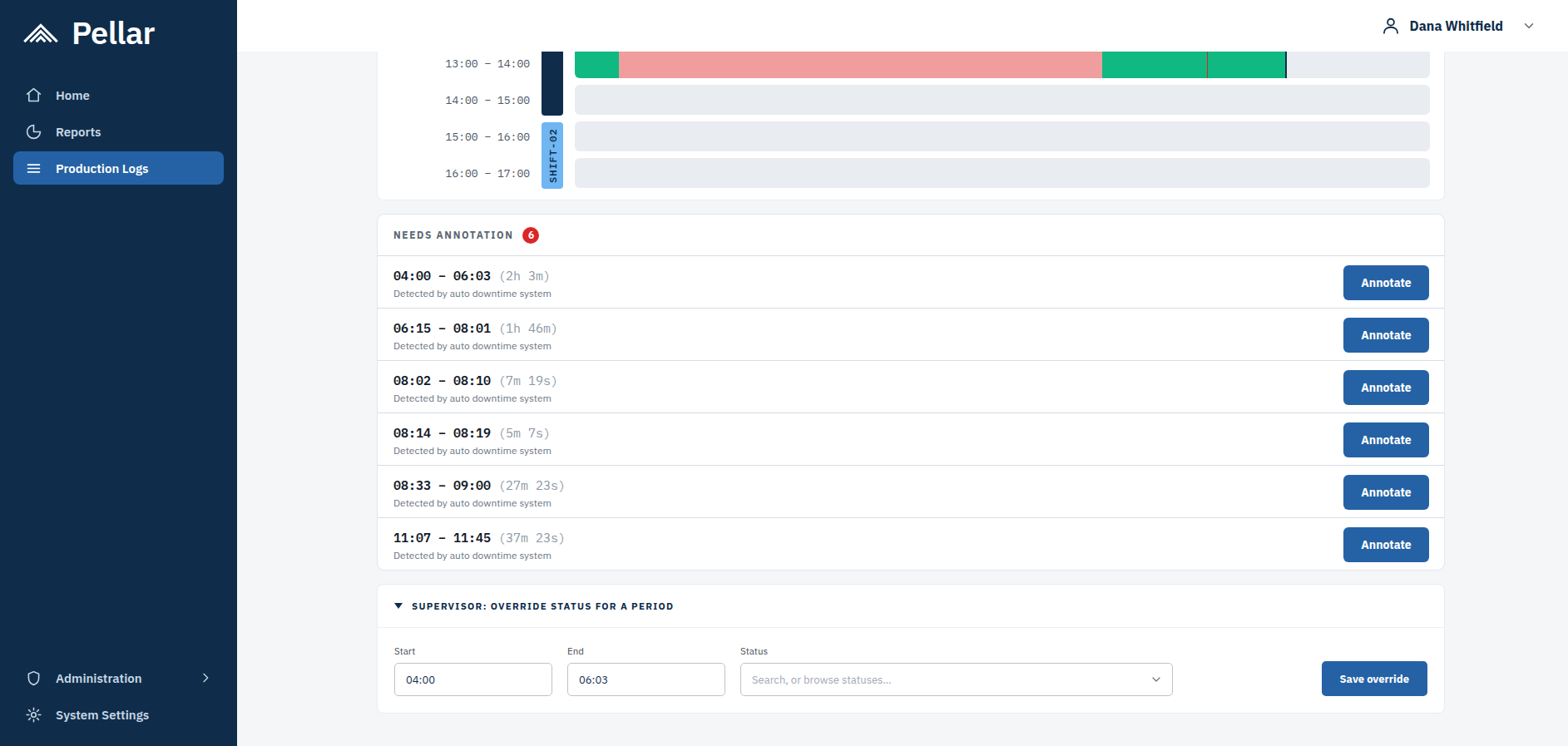
Set the start and end of the period being corrected, then choose the status it should carry. The statuses are the same list used for annotation, and the same rule applies — go as specific as the list allows rather than stopping at a category.
Save the Override. The timeline redraws, and the period now shows the status that was set in place of what the sensors recorded.
Choosing the Right Status
An Override replaces a measurement, so the status chosen should describe what genuinely happened during that period.
| What actually happened | Status to apply |
|---|---|
| The line was down for scheduled maintenance | Planned Down › Scheduled Maintenance |
| The line was not scheduled to run at all | Planned Down › Nothing Scheduled |
| The line was down, and nobody planned it | Unplanned Down, then the most specific reason below it |
Overrides feed the same reporting as annotations. A period marked as planned when it was unplanned makes the downtime totals look better than they were.
Where to Go Next
- What Are Production Logs? — what Production Logs are, what the sensors measure, and what the colors mean.
- Basics of Running a Production Log Session — what operators do on the line during a shift.