
There are two ways a person on the floor gets access to Production Logs.
An operator with a company email is added as a user and signs in as themselves. An operator without a company email works through a kiosk, using an employee ID, which is added to a shared tablet provisioned for a facility and used by whoever is on the line.
Both are managed under Administration. This article covers operators. Kiosks are covered in Provisioning a Kiosk.
Words to Know
| Term | What it means |
|---|---|
| Operator | A person who runs Sessions on a line and annotates stops. |
| Facility | One plant. A facility contains many lines. |
| Employee ID | The number that identifies an operator in your own records. |
| Kiosk | A shared tablet provisioned for a facility, used by operators without an individual account. |
| Session | A line operator starts a Session on a line in order to begin logging downtime reasons. |
Which One to Use
| Operator account | Kiosk | |
|---|---|---|
| Requires a company email | Yes | No |
| Signs in as | Company Email | Employee ID |
| Scoped to | The facility assigned to them | The facility it was provisioned for |
The Operators Page
Open Administration and select Operators.
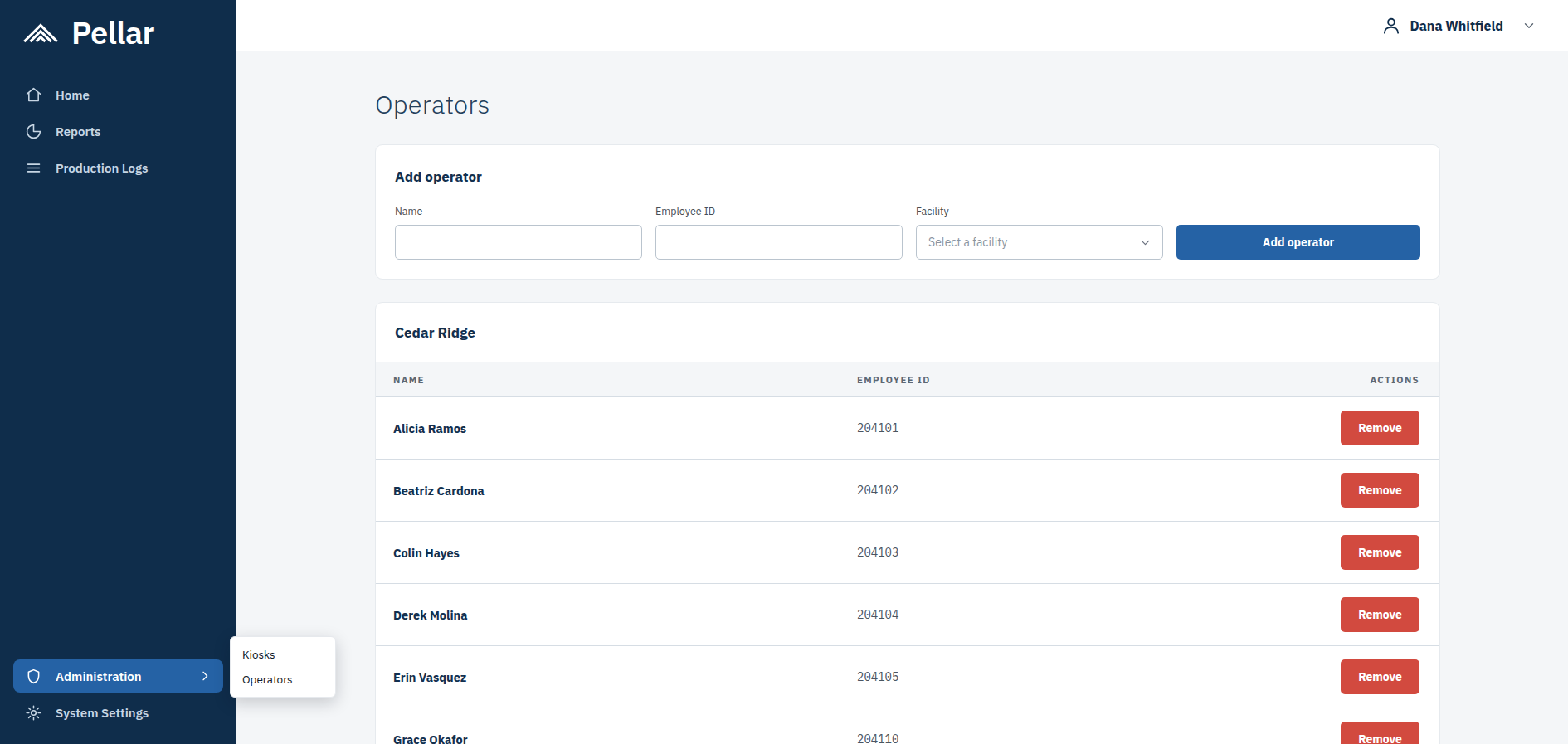
The page has two parts. The Add operator form sits at the top. Below it, every operator already in the system is listed, in one list for the facility.
Each row shows the operator's name, their employee ID, and a Remove button in the Actions column.
Adding an Operator
Fill in the three fields at the top of the page.
Name. The operator's full name, as it should appear in the list.
Employee ID. The number your facility already uses for that person.
Facility. The facility the operator works at, chosen from the dropdown.
Select Add operator. The operator is added to the card for that facility.
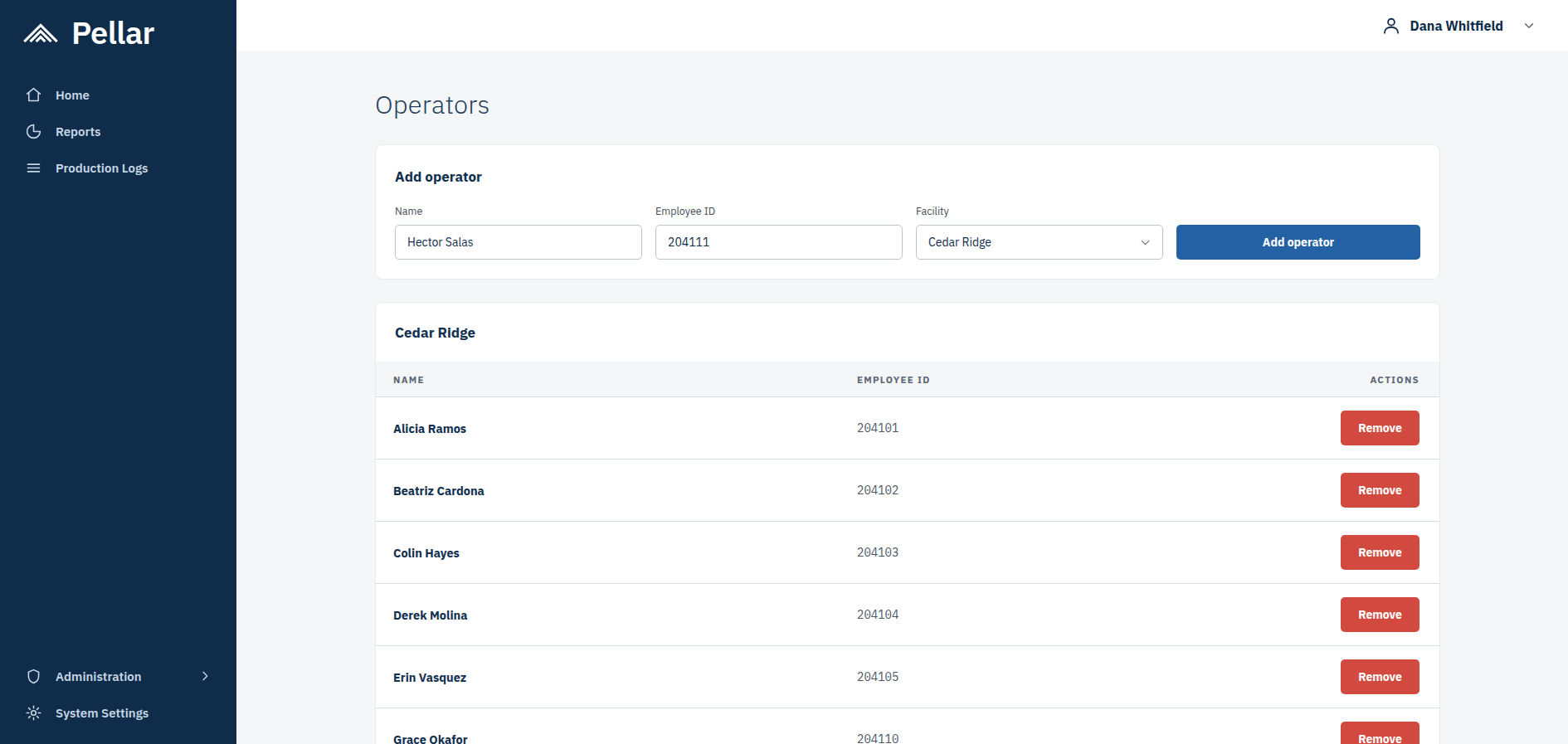
An operator is added per facility, so the facility you select determines which lines they can open a Session on. An operator at one facility does not see production logs for another.
Removing an Operator
Find the operator in the list for their facility, then select Remove in the Actions column. The operator is removed as soon as the button is selected.
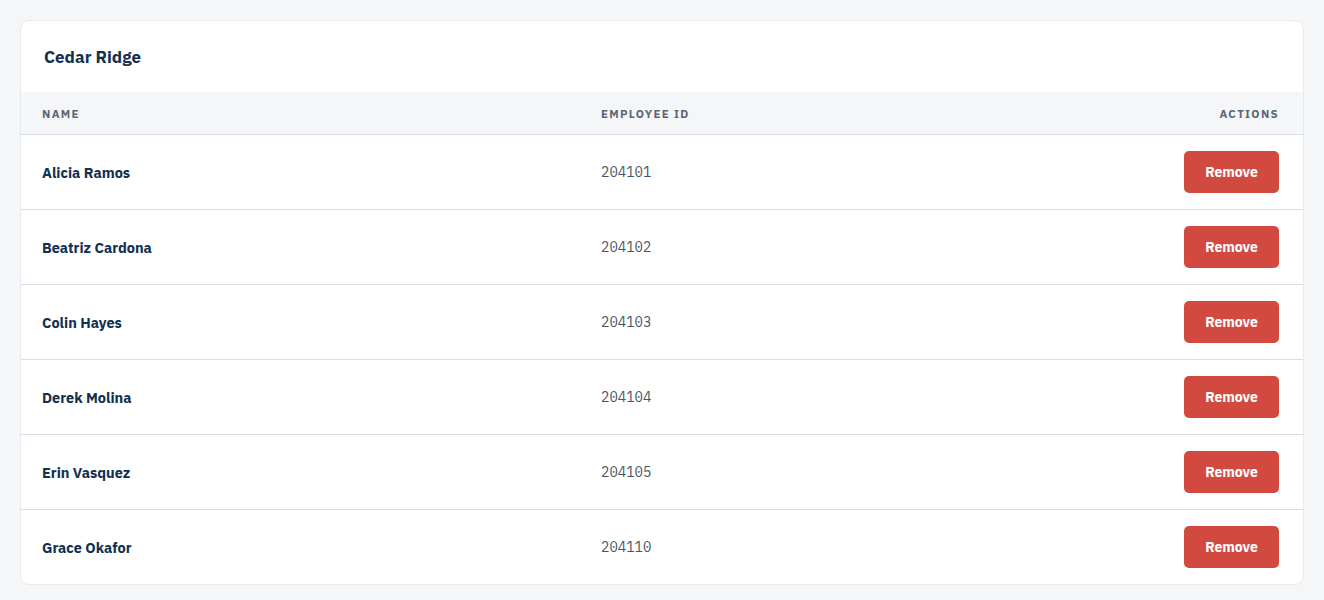
Removing an operator ends their access. It does not remove their past work. Sessions they ran, and the annotations they recorded, stay attached to the line and continue to appear in reporting.
Where to Go Next
- Provisioning a Kiosk — setting up a shared tablet for operators who have no company email.
- Basics of Running a Production Log Session — what an operator does on the line during a shift.
- What Are Production Logs? — what Production Logs are, what the sensors measure, and what the colors mean.